Adding sound effects
Place sound effects at exact moments, adjust their volume and timing, and anchor them to the right shot.
Sound effects add impact sounds, whooshes, and ambience that bring a flick to life, and they're a great way to land a comic or dramatic beat.
The sound library
- Free sounds: dozens of essentials, available to everyone.
- Premium sounds: hundreds more with Premium.
- Import your own: Premium also lets you bring in custom sounds.
Add a sound effect
Open Sound Effects
On the Shot List, tap Flick Settings, then Sound Effects.
Find the moment
Play or scrub to the exact spot where you want the sound, then pause.
Add it
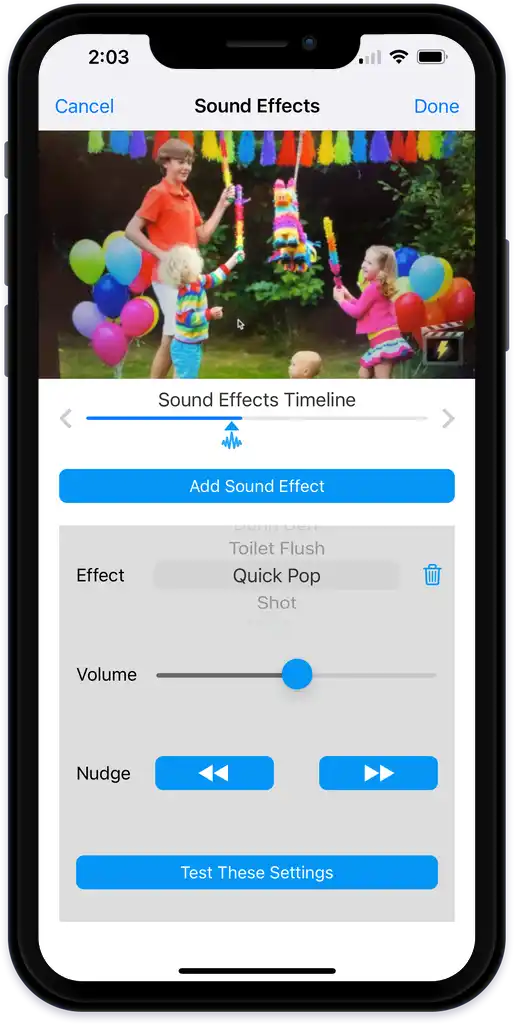
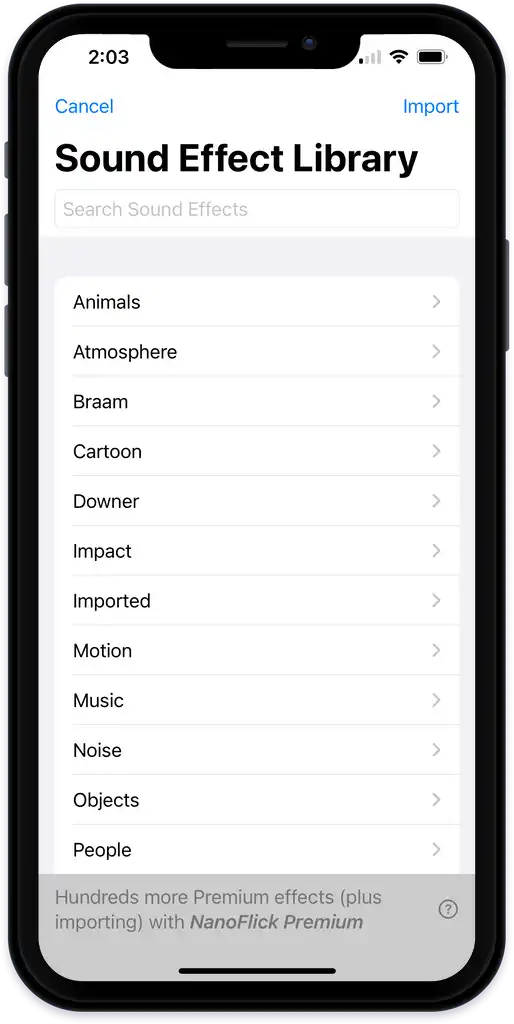
Tap Add Sound Effect, then pick from the quick list or tap More to browse everything. The sound drops at the playhead and appears as a marker on the timeline.
Adjust a sound
Tap a marker to select it. You can swap it for a different sound, set the volume from 0 up to 200 percent (the control tints orange past 100% and red past 150%, so you can boost for emphasis without pushing it into distortion), nudge the position for precise timing, preview just that sound, or delete it.
Sounds stick to their shot
Each sound is anchored to the shot it sits in. Reorder your shots and the sound moves with them. Trim a shot and the sound keeps its relative spot. Sounds can't cross from one shot into another.
A little goes a long way:
- Sync sounds to the action on screen.
- A few well-placed sounds beat a pile of them.
- Match the mood: subtle ambience for calm scenes, punchy impacts for action.
- Preview before you finalize, and watch the volume boost so it doesn't distort.
Last verified