The App
Editing a shot
The style and structure controls for a single shot: text, filters, speed, transitions, reshoot, trim, and aspect ratio.
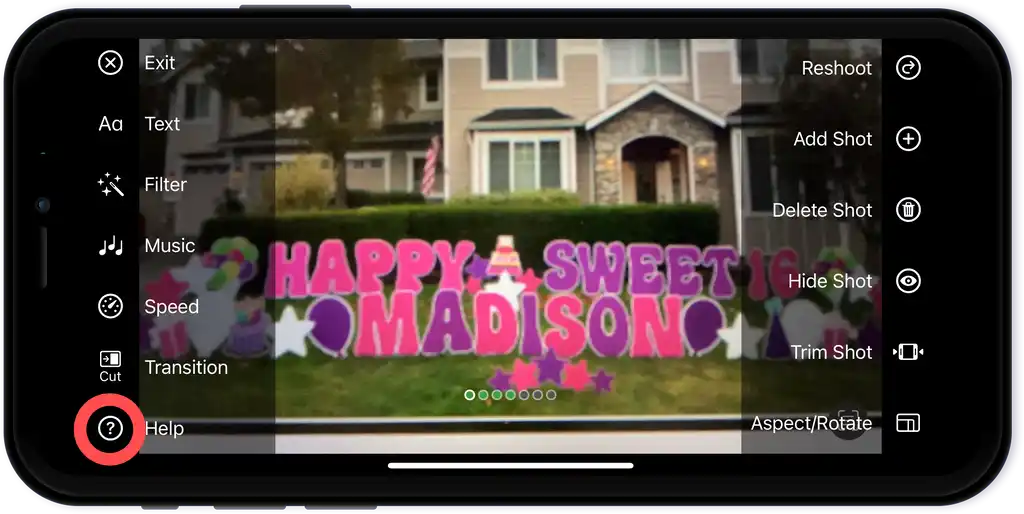
Open a shot and tap Edit to reach the Shot Edit screen. One side has style controls, which change how the shot looks. The other side has structure controls, which change the shot itself.
Style
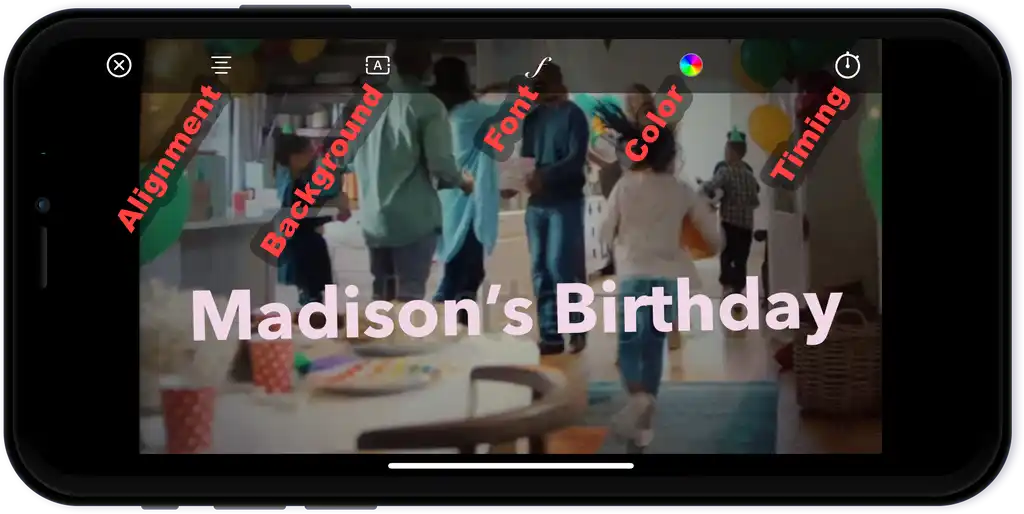
- Text: add up to three text blocks per shot, with controls for font, color, alignment, background, and timing. See Adding text to your shots.
- Filter: many free filters, with more in Premium.
- Background music: add music to this shot. To score the whole flick instead, use Flick Settings.
- Speed: slow down or speed up the shot, and choose how the audio is handled.
- Transition: choose how the flick moves into this shot. More transitions are in Premium.
Structure
- Reshoot: re-record this shot. If you might want the original, use Add or Hide instead.
- Add: insert a new shot right after this one.
- Delete: remove this shot and its video.
- Hide: take the shot out of the flick without deleting it.
- Trim: trim the start and end to keep the shot short and the flick moving.
- Aspect ratio and orientation: switch between landscape and portrait, and set masks for sharing. We suggest shooting landscape for the most flexibility.
A few favorites from longtime creators:
- Keep the middle of a clip: duplicate the shot, trim the first copy to the opening and the second copy to the ending.
- Title-only shot: to show a title with no footage, shoot a black frame by covering the lens, add your text, and trim to length.
- Changing locations: use the Dissolve transition to signal a jump in time or place.
More on shapes and cropping is in the aspect ratio and orientation guide.
Last verified