Shoot your shots
How the camera screen works: recording, time limits, shooting out of order, the countdown, and getting good sound.
NanoFlick's templates walk you through your shots one at a time, with prompts to keep you focused and gentle time limits to keep things moving.
Recording
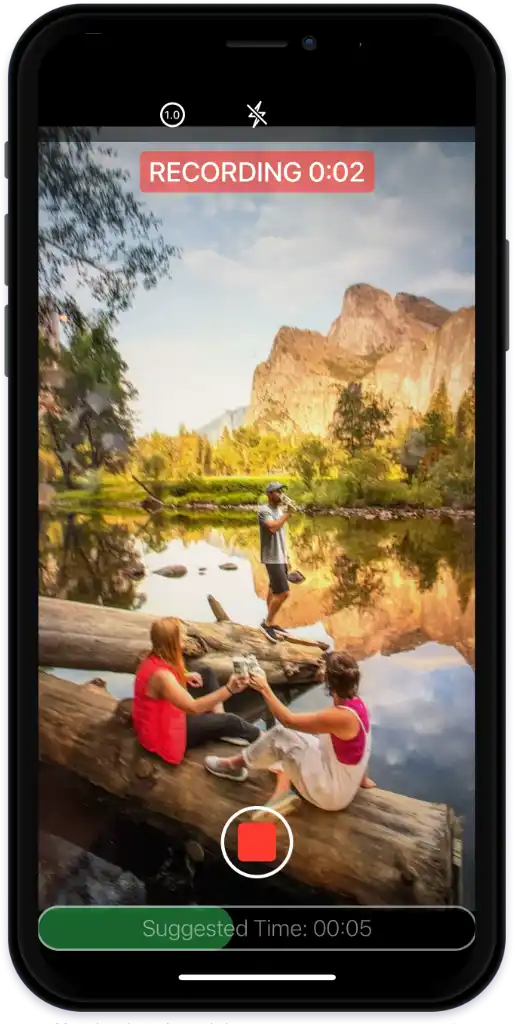
Tap the record button like your normal camera. A bar at the bottom warns when you're running long; you can keep recording and trim later. When you stop, NanoFlick advances to the next shot.
Shoot in any order
You don't have to shoot in sequence. Swipe left or right to move between shots, or tap the X to open the Shot List and see the whole flick at a glance.
When you're in the shot
Turn on Countdown in Settings for a 3, 2, 1 lead-in, so you can look at the camera instead of the screen. On the rear camera you can also have the countdown flash the phone's light. With an Apple Watch, the companion app lets you start and stop recording without touching your phone.
Sound makes a big difference. Just because you can hear someone while shooting doesn't mean it will sound good in the flick. In a noisy place, with crowds, wind, or traffic, add a wired or wireless mic. Turn off fans, air conditioners, and background TVs. If you're narrating, AirPods or EarPods give a crisp result.
More on gear is in the equipment essentials guide.
Last verified