The Shot List
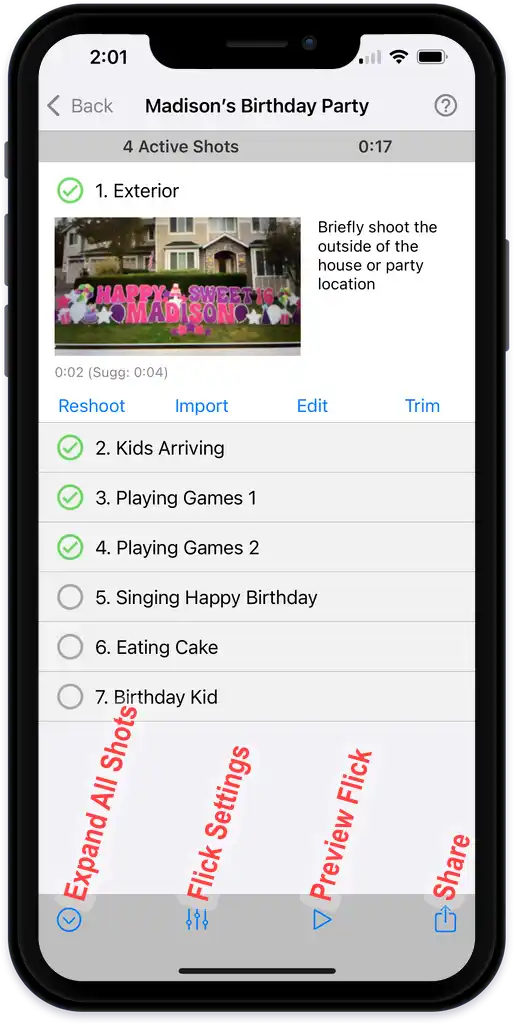
Add, duplicate, delete, hide, rename, reorder, and audition shots from the Shot List, the screen that shows your whole flick.
The Shot List shows every shot in your flick. Open it by tapping Edit on a flick in My Flicks, or tap the X while you're shooting. From here you can shoot, import, edit, trim, or reshoot any shot.
Add, duplicate, delete
Swipe left on a shot to add a new shot, duplicate it, or delete it.
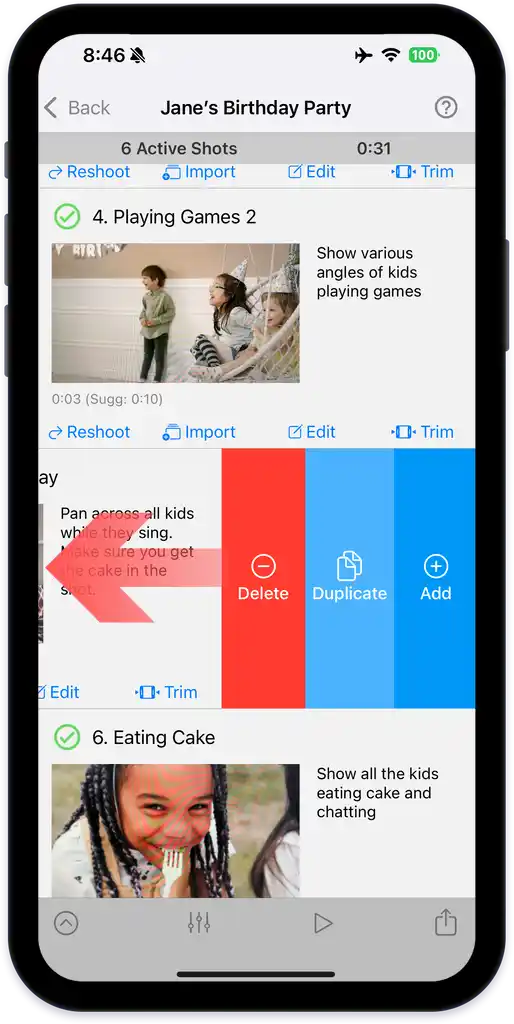
Instead of reshooting the same shot, add alternatives and keep the best. At a sports game, shoot lots of options, then delete the ones you don't use.
Hide and unhide
To take a shot out of the flick without deleting it, hide it. The shot stays in your project but is left out of the finished video, and you can unhide it anytime. Hiding is great for trying options: keep several versions of a shot, hide all but one, and preview how the flick plays. Perfect for kids, pets, and sports.
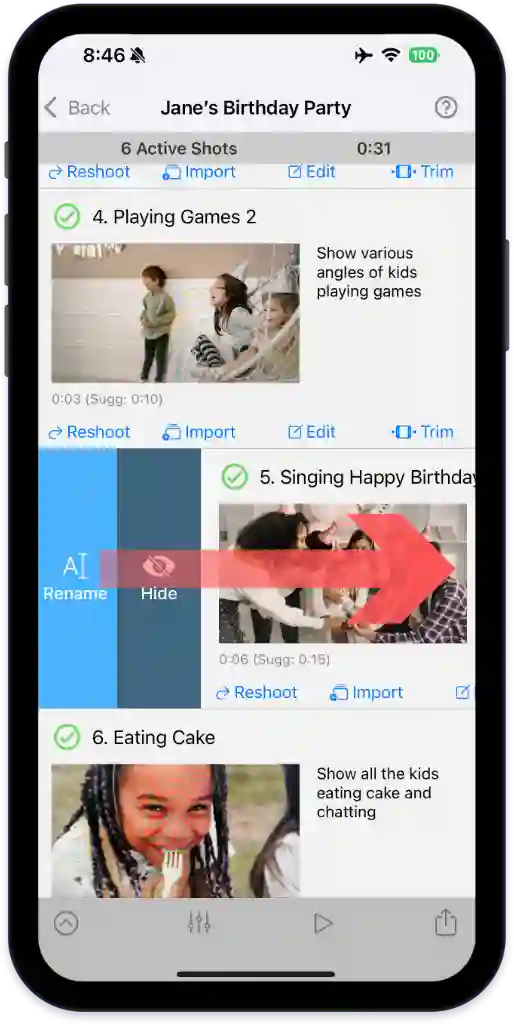
Rename
Rename a shot to keep your list organized. Shot names don't appear in the finished flick. If you export to Final Cut Pro with NanoFlick Pro, the exported file names match your shot names.
Reorder
Tap and hold a shot, then drag it to a new spot in the list.
Ready to fine-tune a single shot? See Editing a shot.
Last verified