Full-frame sharing with shot masks
Share one flick full-frame to landscape, portrait, and square, with no black bars, choosing the best crop for each shot.
One of NanoFlick's most useful tricks: shoot a flick once and share it full-frame everywhere, landscape on YouTube, portrait on TikTok, square on Instagram, with no black bars and no stretching. A shot mask is how you control what stays in frame when the shape changes.
The quick rule (see Orientation and aspect ratio for the basics): orientation is how you shoot, aspect ratio is how you share. Shoot every shot the same way, landscape gives you the most room, then use masks to frame each shot for each shape you share to.
What a shot mask does
When you share a landscape flick to a portrait app like TikTok, the wide frame has to be cropped to fit. Left alone, that means black bars or a crop you didn't choose. A shot mask lets you pick which slice of each shot is kept, so the part that matters, a person rather than the background, stays in view.
The useful part: you set it per shot, per aspect ratio, and even per version. A wide establishing shot and a tight close-up can each keep the right area for portrait, and a different area for square.
Set a mask
On a recorded shot's Edit screen:
- Tap the Aspect button to cycle through the shapes (landscape, portrait, square), or tap and hold it and choose Change Shot Mask to pick one directly.
- A dimmed overlay shows the part that will be cropped out. Drag it to choose what stays in frame.
- Double-tap the mask to recenter it.
Repeat for each shot, and for each shape you plan to share to. Every placement is saved on its own.
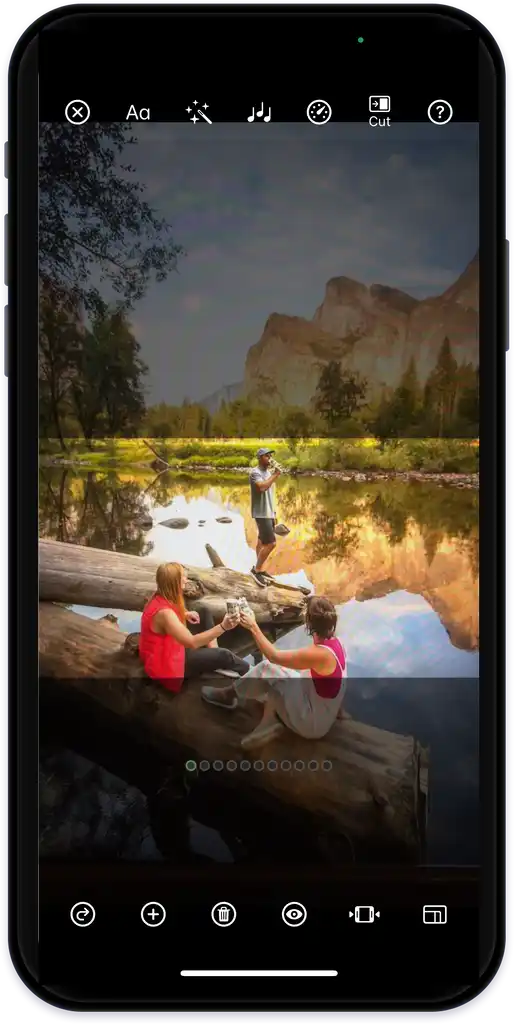
Masks change the shared video, not the preview. The editor always plays your flick in the orientation you shot it, so a mask won't show there. To see a masked result, share to your camera roll, or make a version in the other orientation.
Keep the whole frame instead
To show a shot complete, with letterbox bars rather than a crop, tap and hold the Aspect button and turn on Fit shot (black bars). That shot then appears in full no matter how you share it, and it skips masks entirely.
Imported clips: Rotate Shot
If you bring in a clip shot the other way around, tap and hold Aspect and use Rotate Shot to line it up with your flick's orientation before you mask it.
When you can skip masks
If you always shoot and share the same way, landscape to YouTube only, for instance, you can ignore masks completely. They're there for when one flick needs to look right in more than one place.
Last verified