How to Add Video to Google Maps & Google Business Profiles (GBP) for Your Retail Store
Google keeps a spot near the top of your listing for video. Here's the SEOV format that wins it, plus the exact steps to post it as the owner.
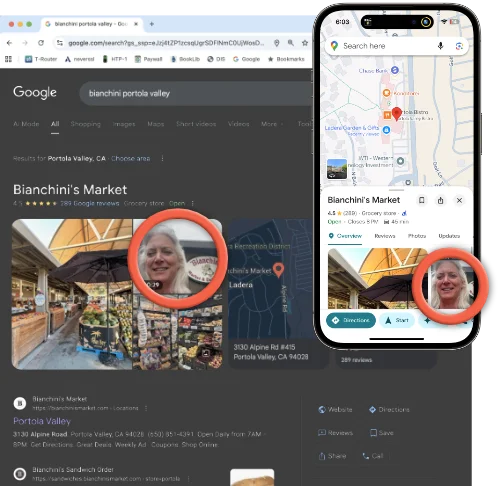
Like most humans, Google loooooves casual, multi-shot video, especially for local retail stores. But there's a secret to how to add those videos, and how to make videos that get featured at the top. In this article, we'll share what types of videos work best, and how to share directly to Google.
What to Make: Search Engine Optimized Video (SEOV)
We've studied this one closely and built custom video templates to match Google's desires. Here's what the algorithm seems to like:
- Aim for authentic, casual videos: forget the sizzle, AI, transitions and animations. Google loves videos of real people doing real things.
- Make your video about 25 seconds long.
- Use multiple shots: a single clip doesn't tell a story.
- Add visual variety: wide shots, close ups, menus, product detail, human reactions. They make the video vibrant and real.
- Shoot outside shots during daytime for clear images.
Here's how the top of your listing works. Google keeps one spot near the top for a video, and only the video it ranks first gets it. In the Google Maps app, that video can be the biggest image on your listing. In Google search results, it's the tile right beside your cover photo. If you haven't posted a video, a customer's clip will fill that spot for you.
We've tested this format around the world, from a grocery store in San Francisco to the oldest restaurant in Europe. In our latest check of 41 restaurants and shops where our founder had posted a NanoFlick review video as a customer, his was the first video on the listing at 34 of them, ahead of other customers' shorter clips. And at the handful of listings where the owner had posted a video, the owner's video held one of the top two spots every time.
You can run with the SEOV guidelines yourself. We've built some free templates with full shot lists like the one below. You can use these with any camera or app. Tap/click on the image below to see the full template.
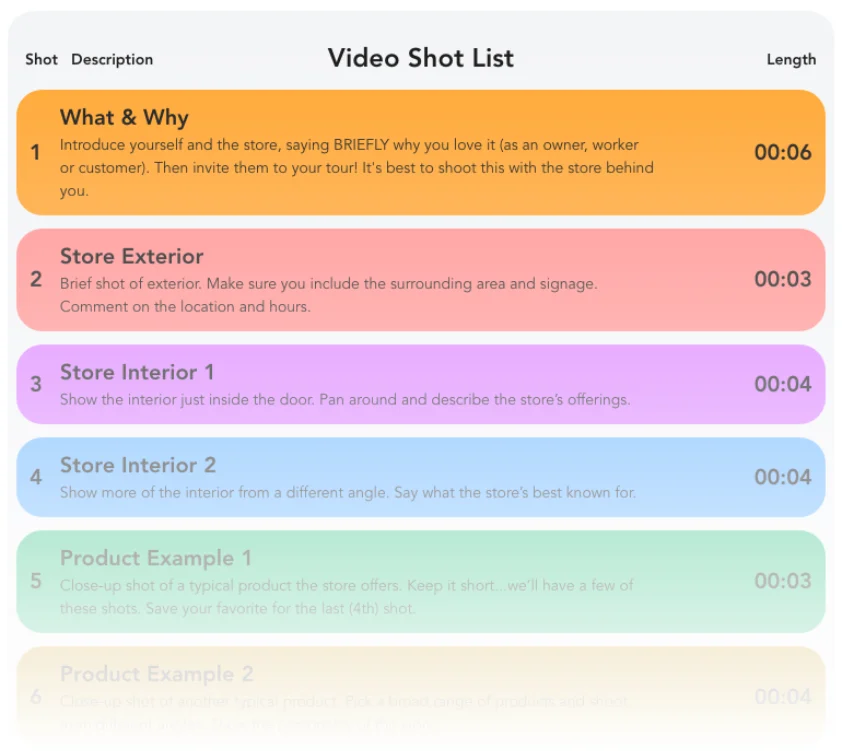
There are several other templates to help revitalize your Google presence and social feeds, and to drive more traffic. Take a look here.
Content Recommendations
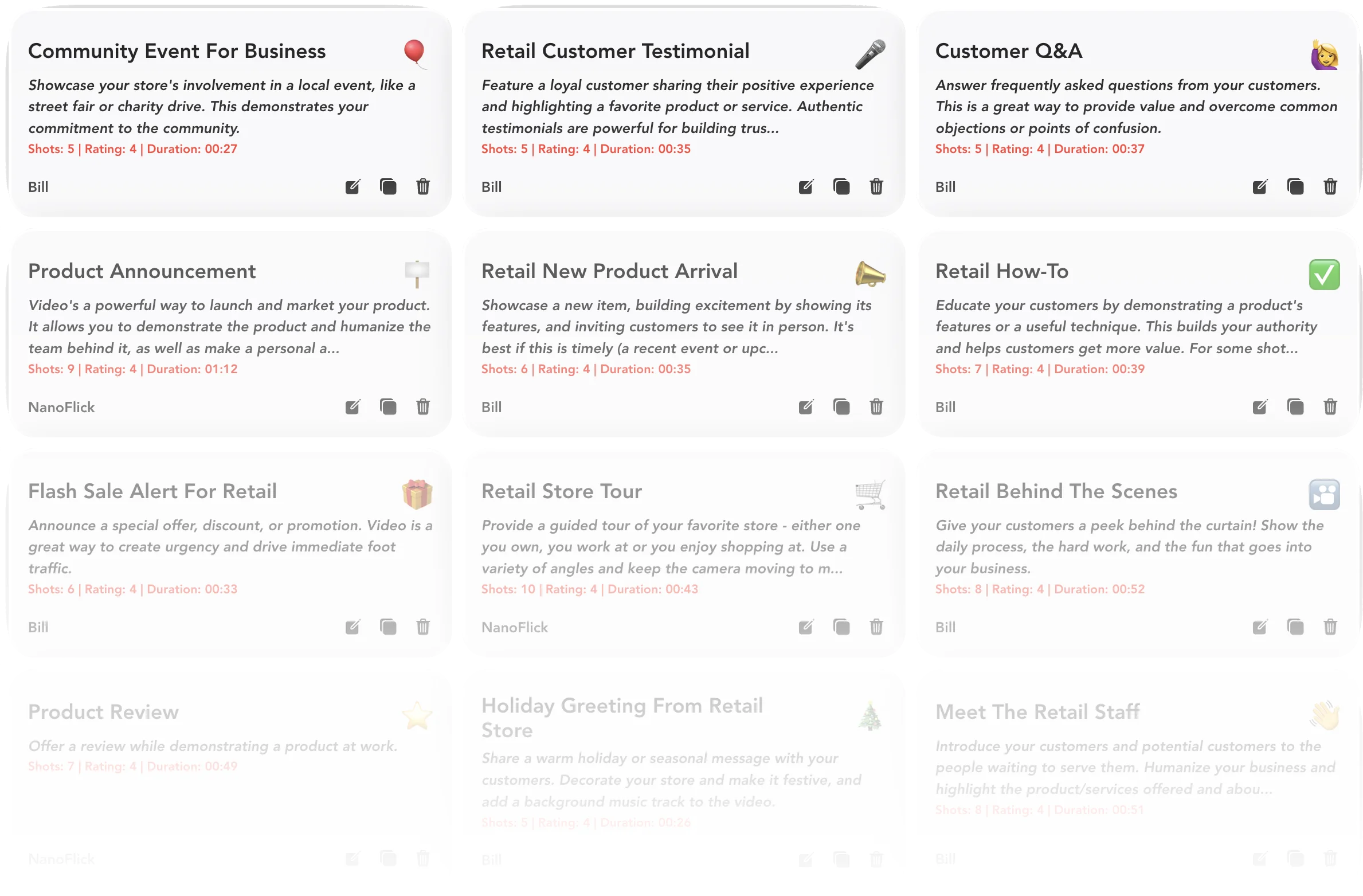
We suggest making 3 "evergreen" video overviews, then supplement with 1 to 3 weekly videos that you also distribute on other social channels like Instagram. Some evergreen options would be:
For the more frequent, updated content to keep your listing fresh, consider:
- Community Event: Open house, holiday party, famers market, etc.
- Customer Q&A
- New Product Arrival
- How-To Demonstration
- Product Review
- Flash Sale Alert
- Holiday Greeting
- Testimonials: invite customers to share their own, and with their OK, post them from your Business Profile and your social channels
Getting it Done
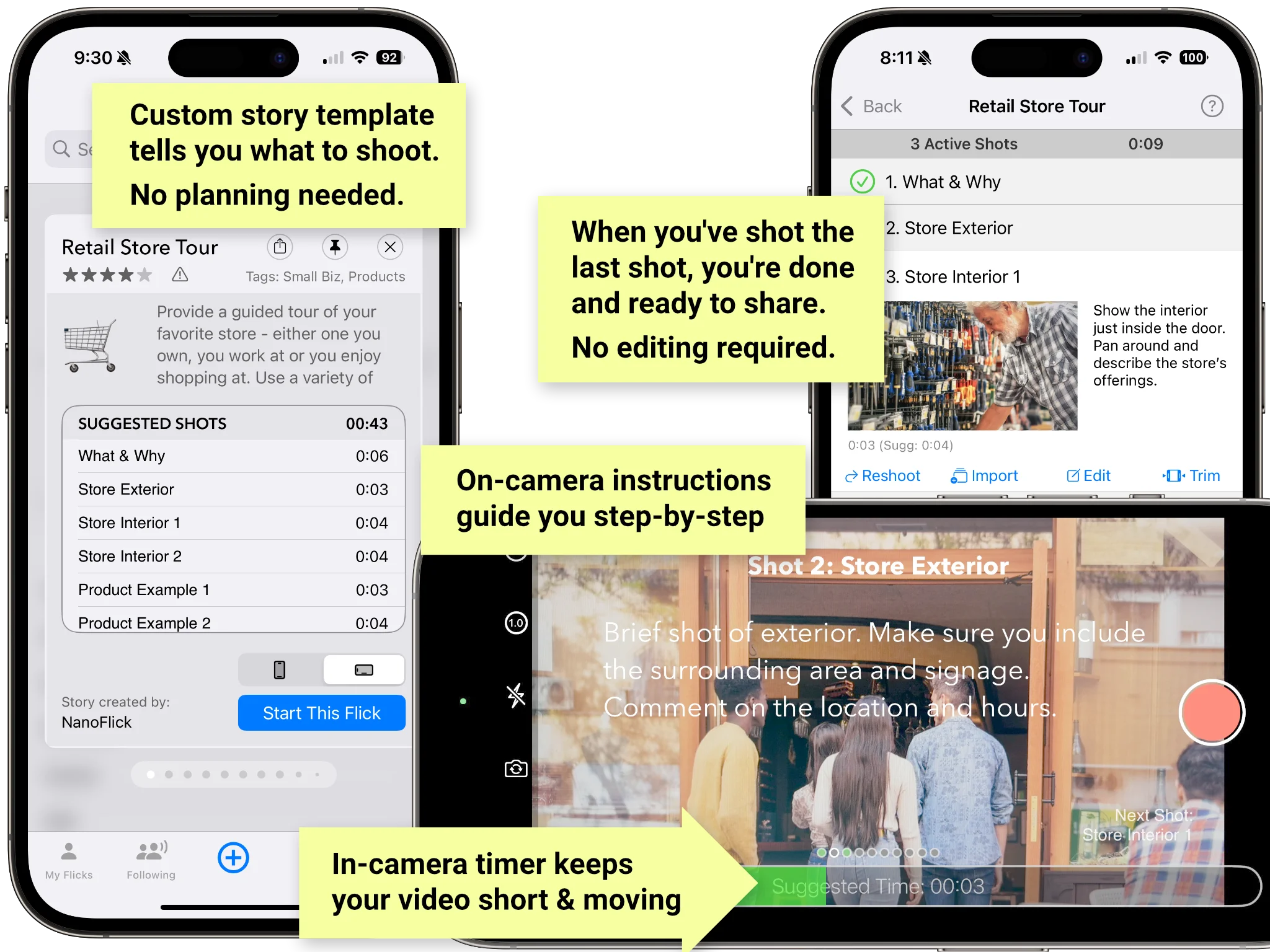
The links above include shot lists you can use with any camera or editing software. Those same shot lists are built into the free NanoFlick app. It's the easiest and quickest way to make these Google-optimized videos. The app walks you through each shot step-by-step so there's no editing required, cutting your production time from hours to minutes. Just shoot the shots and share immediately. Give it a try.
How to Post Your Video to Google
Google uses the same intake for Google Maps and Google Business Profiles (GBP), but the process is not obvious. First of all, it has nothing to do with YouTube. The videos featured in Maps & GBP do not include YouTube videos. Second, post as the owner, not as a review. Google doesn't allow owners or staff to review their own business and removes those reviews, so your videos go on your Business Profile instead. You can post from the Google Maps app on your phone, or from Google Search or Maps on a computer.
- Keep your video to 30 seconds or less, Google's limit. Aim for about 25 to 27 seconds.
- Save the video to your camera roll. In NanoFlick, share from the MyFlicks tab or the Shot List view shown below, or tap G-Maps in the share options, which saves the video and opens Google Maps for you. Other video apps have a similar way to save to your camera roll.
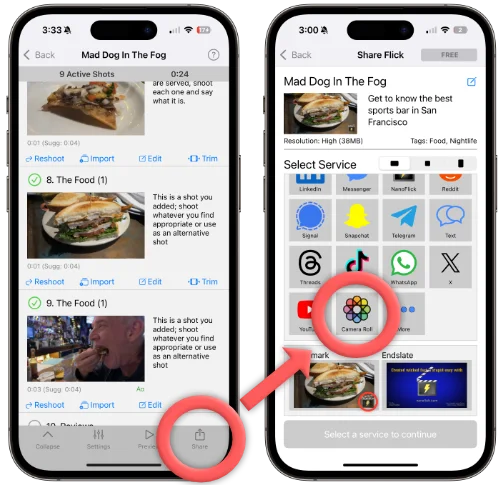
- Open the Google Maps app on that same phone, signed in with the Google account that manages your Business Profile. At the bottom right, tap Business.
- Tap More, then Add photo, and select your video.
- Tap Done, then Publish.
On a computer, search for your store's name and city on Google Search or Maps, click Photos, then Add photos, and select your video.
It can take a day or two for your video to appear. Add new videos over time to keep your listing fresh, and delete older ones whenever you like.
Your Customers' Videos
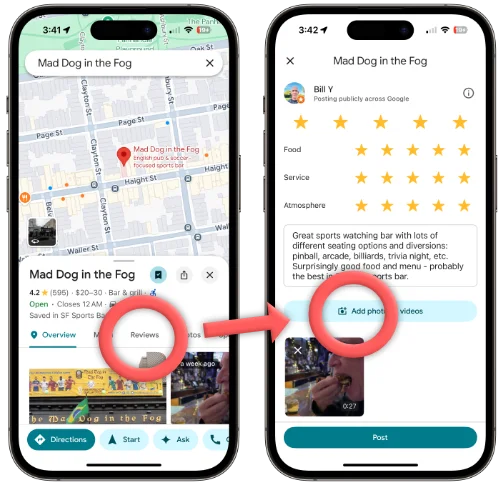
Your customers can add videos to their own Google reviews, and a good one can end up in that top video spot. You can invite every customer to post one, with a card at the register or a note on the receipt. Google doesn't allow rewards for reviews, or inviting only your happiest customers, so keep the invitation open to everyone.
For more detail on social media strategy for retail, take a look at the research and case studies here.
You can download the NanoFlick app free from the Apple App Store and start creating in minutes. Select the "Small Biz" category or search for "Retail" to access relevant templates, or visit nanoflick.com/video-stories to explore all available templates. If you have a template idea you'd like us to add, go to Settings in the app, and tap the Suggest a story template button.
See plans for teamsPublished